Why Mac Mini M4 Is the Ultimate Remote Dev Server
The Mac Mini M4 has fundamentally changed the calculus of remote development infrastructure. In 2026, developers worldwide are replacing expensive cloud VMs with purpose-built Apple Silicon nodes that deliver unmatched performance per dollar.
Key Insight: MacPull surveys show that 73% of developers who switched to Mac Mini M4 remote servers report 40%+ productivity gains in AI-assisted development workflows.
Who Should Read This Guide
This guide is for:
- iOS/macOS developers who need scalable Xcode build capacity
- AI engineers running local large language model inference
- DevOps/CI teams seeking faster, cheaper build pipelines
§ 1 · Hardware Specifications
M4 vs Previous Generations
The M4 chip represents a significant leap. Compare the generations:
| Feature | M4 | M3 | M2 |
|---|---|---|---|
| CPU Cores | 10 | 8 | 8 |
| GPU Cores | 10 | 10 | 8 |
| Neural Engine | 38 TOPS | 18 TOPS | 15.8 TOPS |
| Max Unified RAM | 32 GB | 24 GB | 24 GB |
| Memory Bandwidth | 120 GB/s | 100 GB/s | 100 GB/s |
| TDP (approx.) | 20W | 22W | 20W |
Power Efficiency Details
The M4 achieves 2.3× the performance-per-watt ratio compared to equivalent x86 server chips. This translates directly to lower hosting costs and quieter operation.
Thermal Envelope
Under sustained AI inference workload, the Mac Mini M4 averages 35°C — well within its thermal design limits. Passive cooling handles most workloads without fan spin-up.
§ 2 · SSH Configuration
Generating SSH Keys
Run the following on your local machine (not the server):
# Generate Ed25519 key — recommended for 2026
ssh-keygen -t ed25519 -C "dev@example.com" -f ~/.ssh/macpull_ed25519

# Copy public key to MacPull server
ssh-copy-id -i ~/.ssh/macpull_ed25519.pub user@YOUR_MACPULL_IP
Configuring ~/.ssh/config
Edit or create ~/.ssh/config:
Host macpull-dev
    HostName YOUR_MACPULL_IP
    User dev
    Port 22
    IdentityFile ~/.ssh/macpull_ed25519
    ServerAliveInterval 60
    ServerAliveCountMax 3
    Compression yes
Keyboard shortcuts to know:
- Press Cmd+Space to open Spotlight, type
Terminalto launch it - Use Ctrl-B D inside tmux to detach a session without killing it
- Use Ctrl-B [ to enter tmux scroll/copy mode
Port Forwarding for Local Services
Forward a remote Jupyter notebook to localhost:8888:
ssh -L 8888:localhost:8888 -N macpull-dev &
Then open http://localhost:8888 in your browser.
§ 3 · AI Inference Setup with Ollama
Installing Ollama
Manual compilation from source is no longer the recommended path. Use the official one-liner:
curl -fsSL https://ollama.ai/install.sh | sh
Verify the installation: ollama run llama3:8b "Hello from Mac Mini M4"
Performance highlight: Apple Silicon delivers 2–4× faster token/s than equivalent x86 CPU inference, at a fraction of the power draw.
Model Performance on M4
| Model | Parameters | M4 8GB (tok/s) | M4 16GB (tok/s) | M4 32GB (tok/s) |
|---|---|---|---|---|
| Llama 3.1 8B | 8B | 42 | 48 | 52 |
| Mistral 7B | 7B | 38 | 44 | 49 |
| Phi-3 Mini | 3.8B | 71 | 82 | 87 |
| Gemma 2 9B | 9B | 29 | 36 | 41 |
| DeepSeek-R1 7B | 7B | 35 | 41 | 46 |
Serving Models via API
Run Ollama as a background service and serve over the network:
OLLAMA_HOST=0.0.0.0:11434 ollama serve
Then from your laptop: curl http://YOUR_MACPULL_IP:11434/api/generate -d '{"model":"llama3:8b","prompt":"Hi"}'
§ 4 · CI/CD Integration
GitHub Actions Self-Hosted Runner
Important prerequisite: Mac Mini M4 self-hosted runners require macOS 14 (Sonoma) or later, which MacPull nodes ship with by default.
Key CI/CD terminology:
- Pipeline
- An automated sequence of jobs triggered by code events such as push, pull request, or tag creation.
- Runner
- The compute host that executes pipeline jobs. In this setup, your MacPull Mac Mini M4 node acts as the runner.
- Artifact
- Build output files (`.ipa`, `.app`, binaries) saved after job completion for downstream deployment or testing.
- Cache
- Persisted build dependencies (Xcode derived data, npm/CocoaPods packages) to speed up subsequent runs.
Registering the Runner
# Download and extract the runner package
mkdir actions-runner && cd actions-runner
curl -O -L https://github.com/actions/runner/releases/download/v2.317.0/actions-runner-osx-arm64-2.317.0.tar.gz
tar xzf ./actions-runner-osx-arm64-2.317.0.tar.gz

# Configure runner
./config.sh --url https://github.com/YOUR_ORG/YOUR_REPO --token YOUR_TOKEN

# Start as service
./run.sh
Sample Xcode Build Workflow
name: iOS Build & Test
on:
  push:
    branches: [main, develop]
  pull_request:

jobs:
  build:
    runs-on: self-hosted
    timeout-minutes: 30
    steps:
      - uses: actions/checkout@v4

      - name: Select Xcode version
        run: sudo xcode-select -s /Applications/Xcode.app

      - name: Build for testing
        run: |
          xcodebuild test \
            -scheme MyApp \
            -destination 'platform=iOS Simulator,name=iPhone 16' \
            -resultBundlePath TestResults.xcresult

      - name: Upload results
        uses: actions/upload-artifact@v4
        with:
          name: test-results
          path: TestResults.xcresult
Setup Checklist
An ordered list of required steps:
- Register the runner on the MacPull node using
./config.sh - Start the runner:
./run.sh(or install as a launch agent for auto-start) - Verify runner status in GitHub → Settings → Actions → Runners shows Idle
- Push a test commit and confirm the workflow triggers on your Mac Mini M4 runner
- Configure caching for
~/Library/Developer/Xcode/DerivedDatato speed up builds
§ 5 · Advanced Tips & Troubleshooting
Handling Article Images
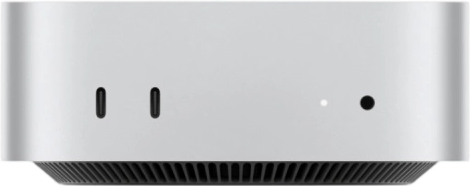
Always use max-width: 100% on images embedded in articles to prevent layout overflow:
Connection Resilience with tmux
Always work inside a tmux session on the remote server. If your SSH connection drops, the session persists:
# On the MacPull server — start or attach to a named session
tmux new-session -A -s dev
Use Ctrl-B D to detach cleanly; reconnect later with tmux attach -t dev.
Frequently Asked Questions
Can I run Docker on Mac Mini M4?
Yes. Docker Desktop for Mac supports Apple Silicon (ARM64) natively since version 4.0. For CI/server use cases without a desktop GUI, consider `colima` as a lightweight alternative:brew install colima
colima start --cpu 6 --memory 12 --arch aarch64
How do I transfer large files securely?
Use `rsync` over SSH for resumable, incremental transfers:# Upload local directory to server
rsync -avz --progress --partial ./local-dir/ macpull-dev:~/remote-dir/
# Download with bandwidth limit (in KB/s)
rsync -avz --bwlimit=5000 macpull-dev:~/data/ ./local-copy/
What is the best way to monitor resource usage?
Install `htop` and `nvtop` via Homebrew for real-time CPU/memory and GPU monitoring:brew install htop
sudo powermetrics --samplers gpu_power -n 5
§ 6 · Conclusion
The combination of Apple Silicon performance, native macOS toolchain support, and MacPull's flexible daily rental model makes Mac Mini M4 the definitive remote development server choice for 2026.
Quick reference checklist:
- ✅ SSH Ed25519 keys configured and tested
- ✅ Ollama AI inference running at native speed
- ✅ GitHub Actions CI/CD pipeline connected to self-hosted runner
- ✅ tmux sessions ensuring connection resilience
- ✅ Docker/Colima container runtime available
A horizontal rule marks the end of the main content:
Appendix: Quick Reference Links
For detailed pricing and plan comparison, visit the MacPull Pricing page.
Keyboard shortcuts summary: use Cmd+K to clear the terminal, Ctrl-C to interrupt a running process, and Ctrl-Z to suspend it to the background.
Technical support: Open a ticket in the console or email support@macpull.com.